
How It Works
MCDMAKER helps you perform multi-criteria decision analysis in three phases: Create your project, Input your data, and Analyze the results, for fuzzy methods, configure personalized fuzzy scales , or explore method algorithms with interactive examples.
Create Project
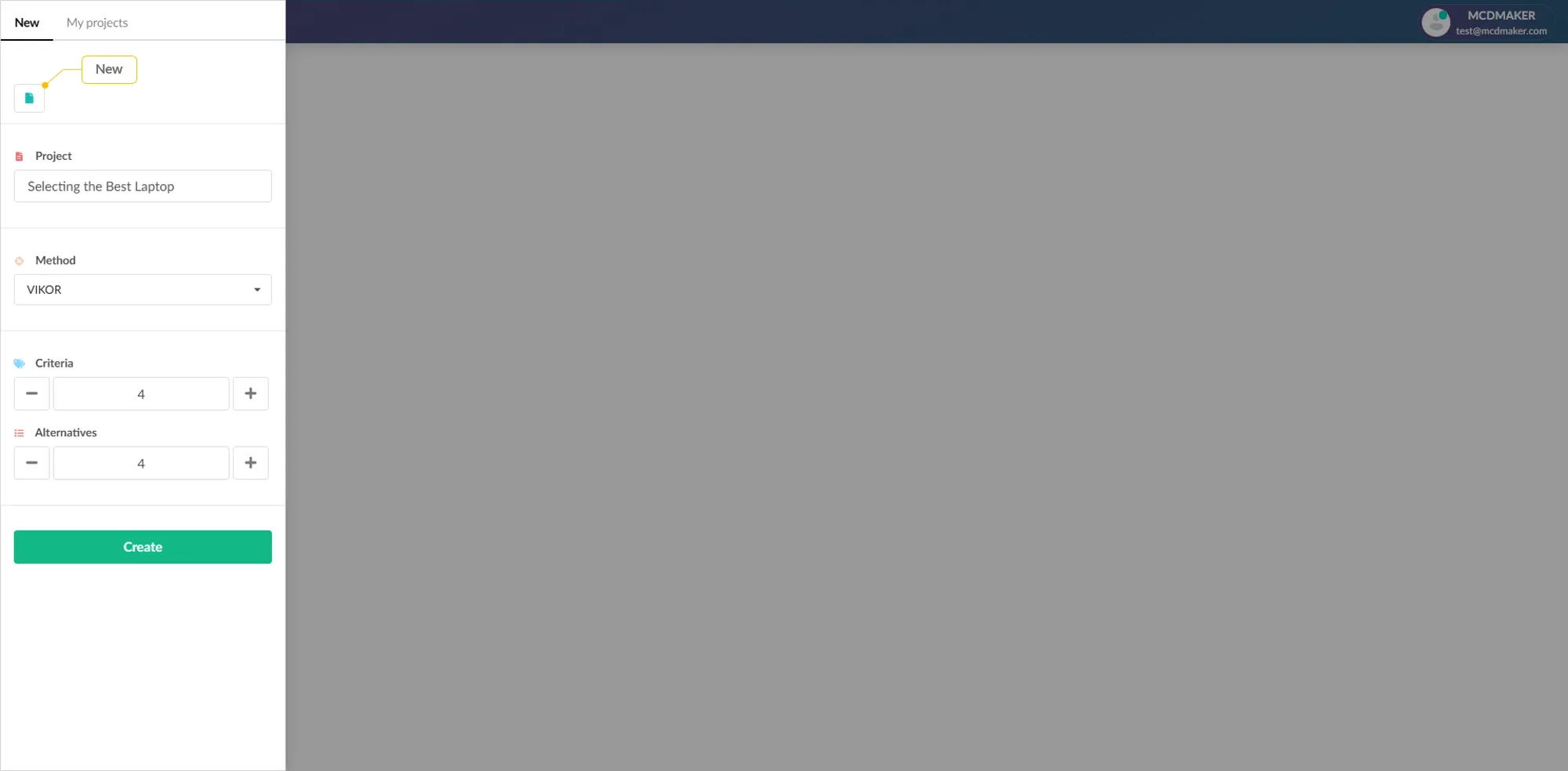
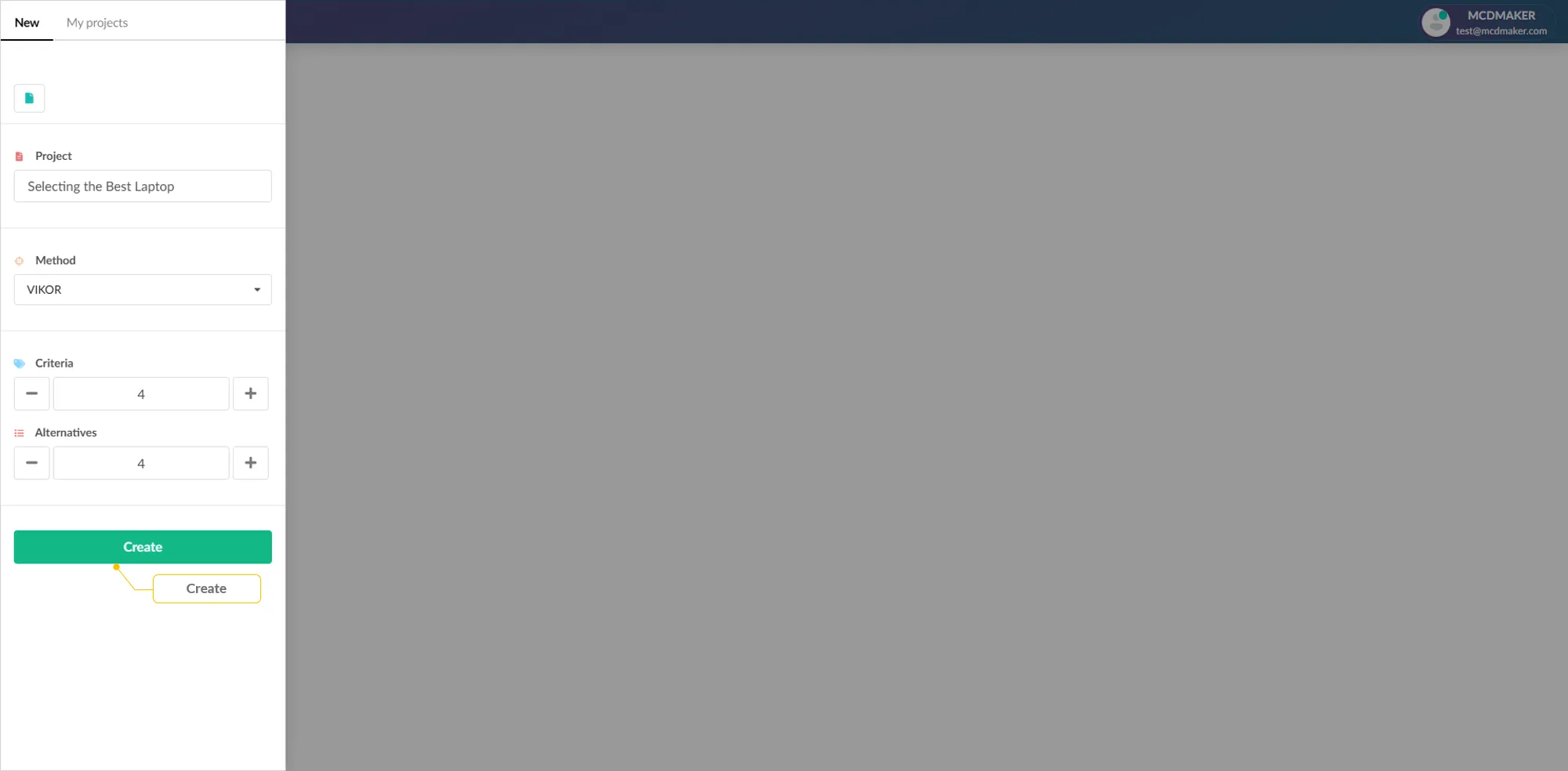
Click the New button
In the left sidebar under Projects , click the New button to start creating a new decision-making project.
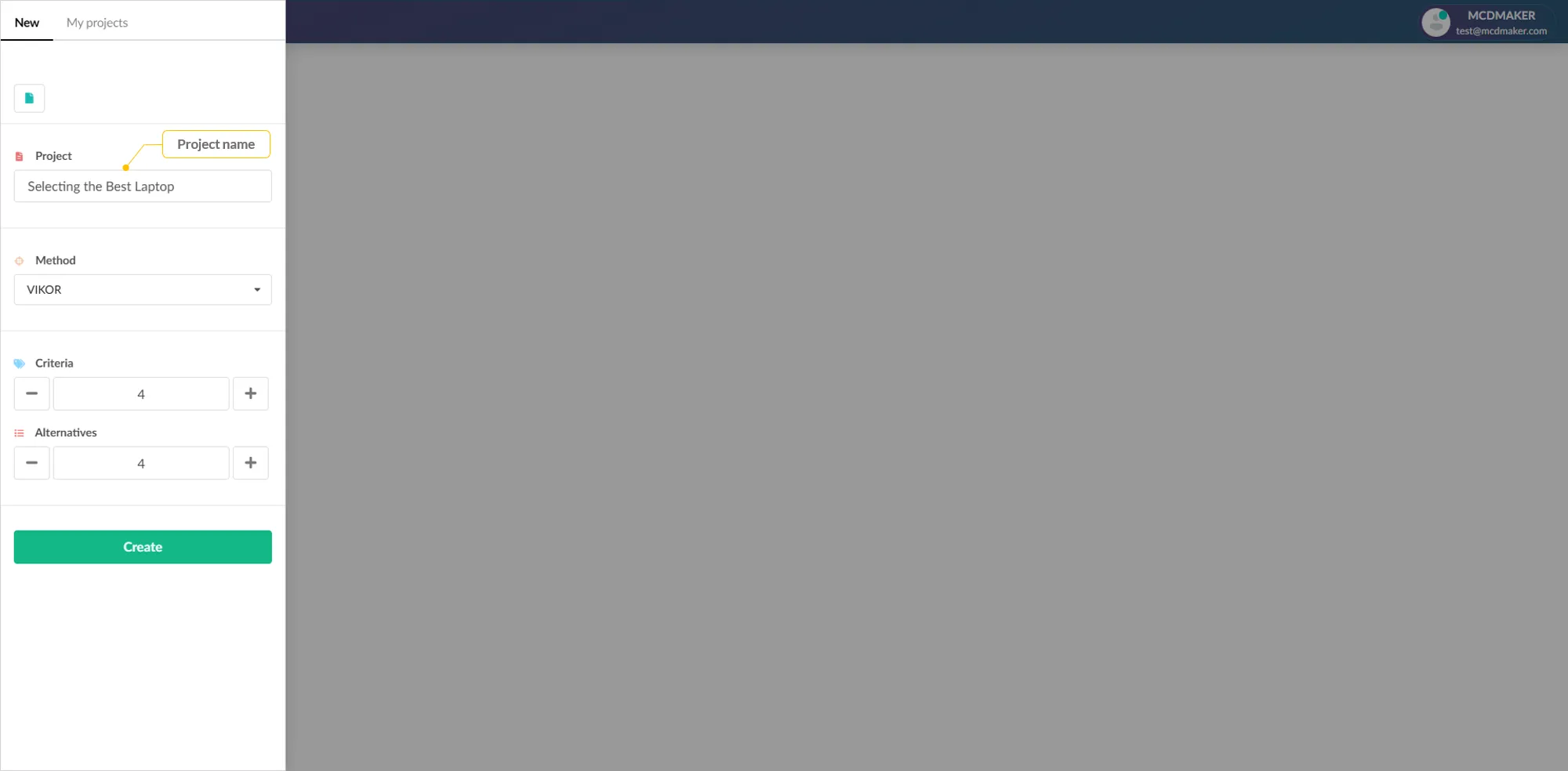
Add a Project Name
Enter a descriptive name for your decision problem in the Project field. For example: "Selecting the Best Laptop". This name appears in the sidebar and helps you identify the project later.
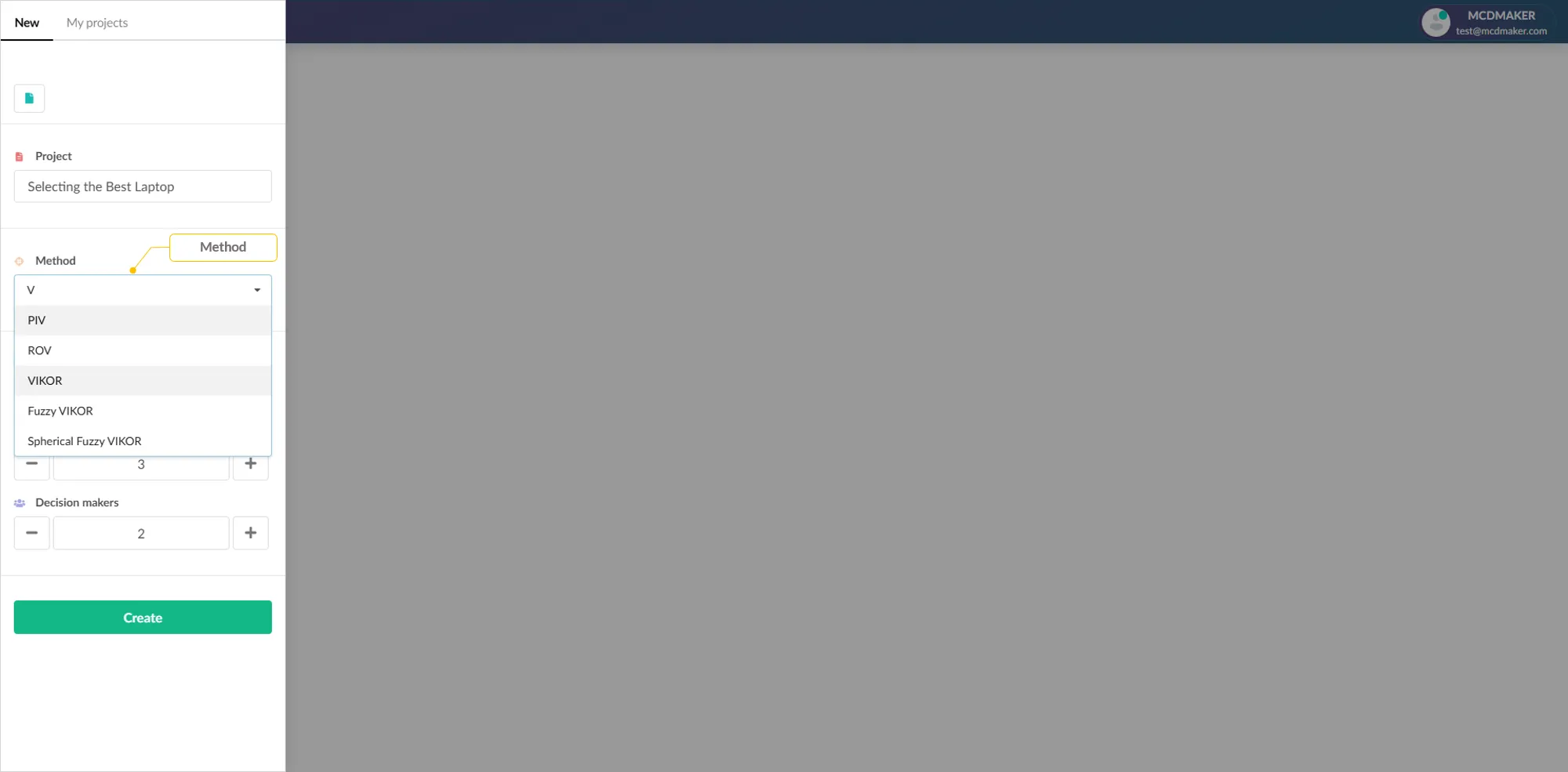
Select a Method
Choose an MCDM method from the Method dropdown.
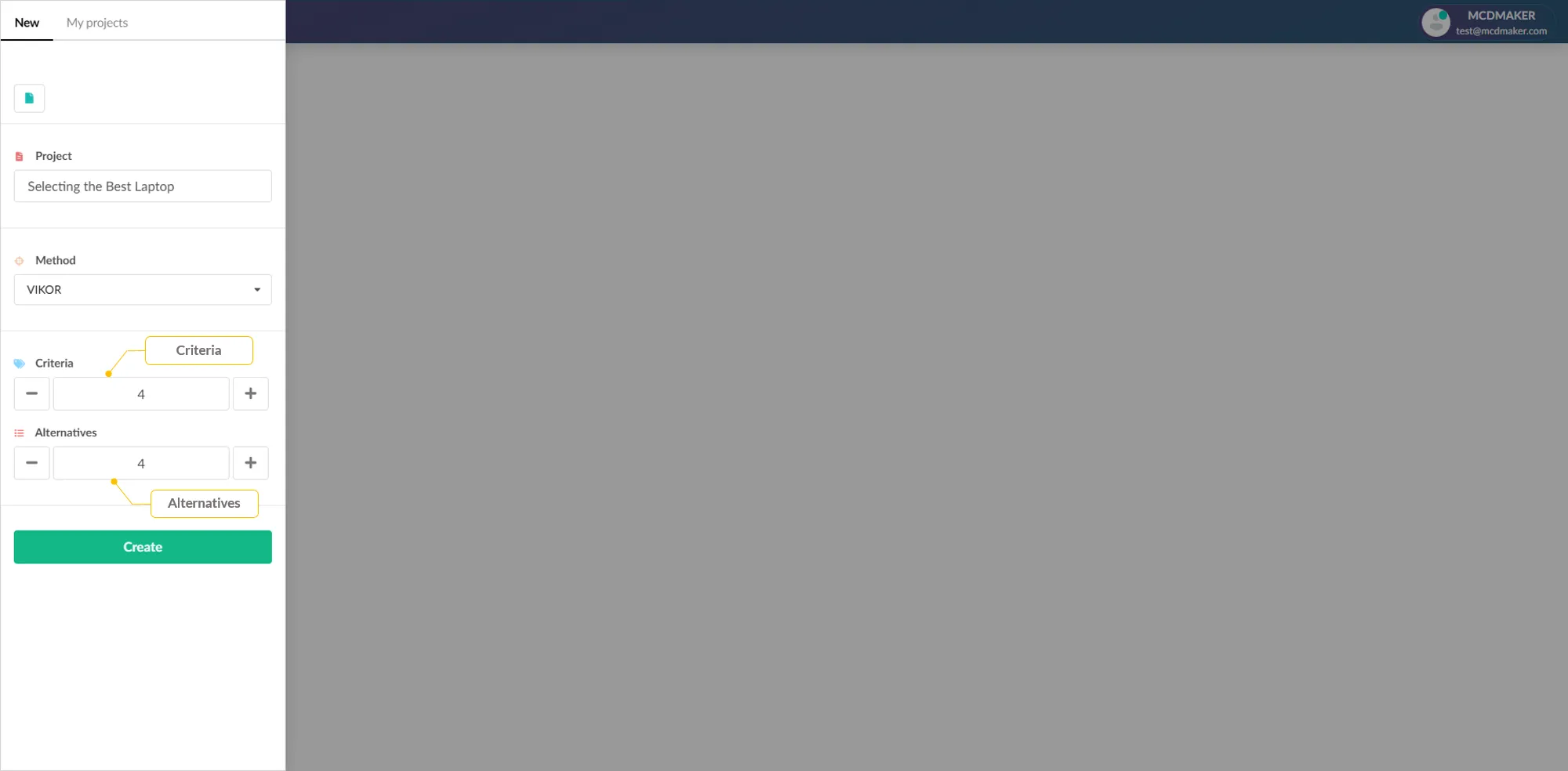
Set Criteria & Alternatives
Enter the number of evaluation criteria and alternatives to compare:
Click Create
Click the green Create button to initialize your project. An empty decision matrix will be generated with your specified dimensions, ready for data input.
Input Data
Use the Header Toolbar
After creating the project, the data input view appears. The header toolbar provides quick-access buttons:
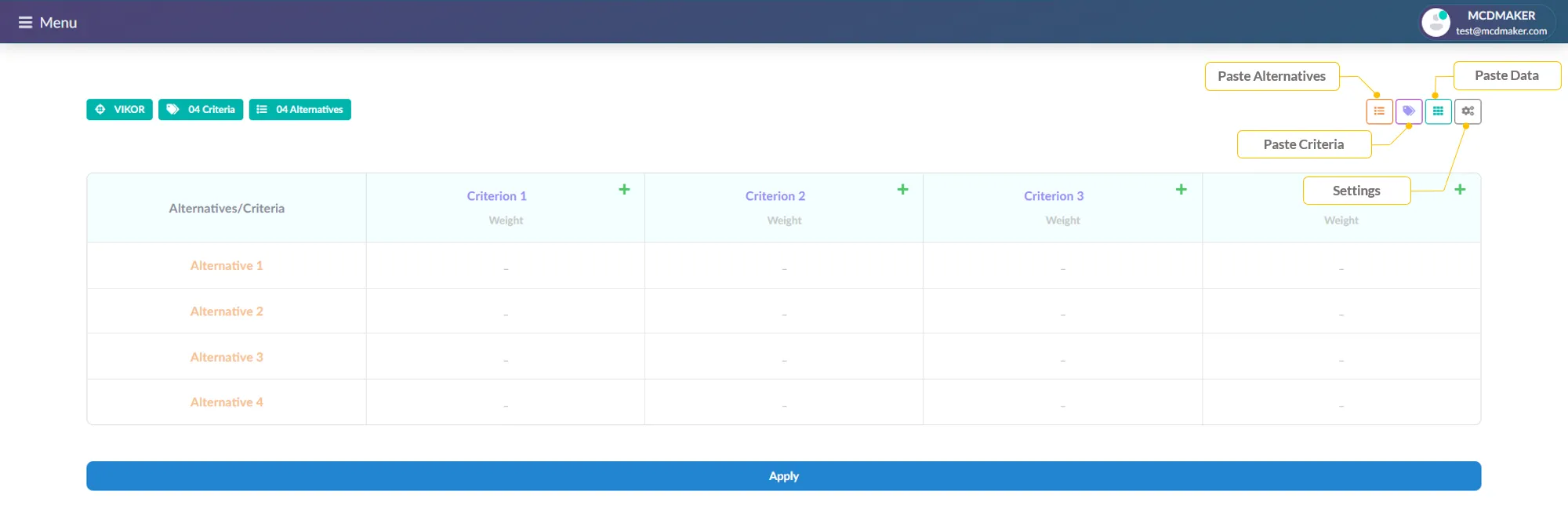
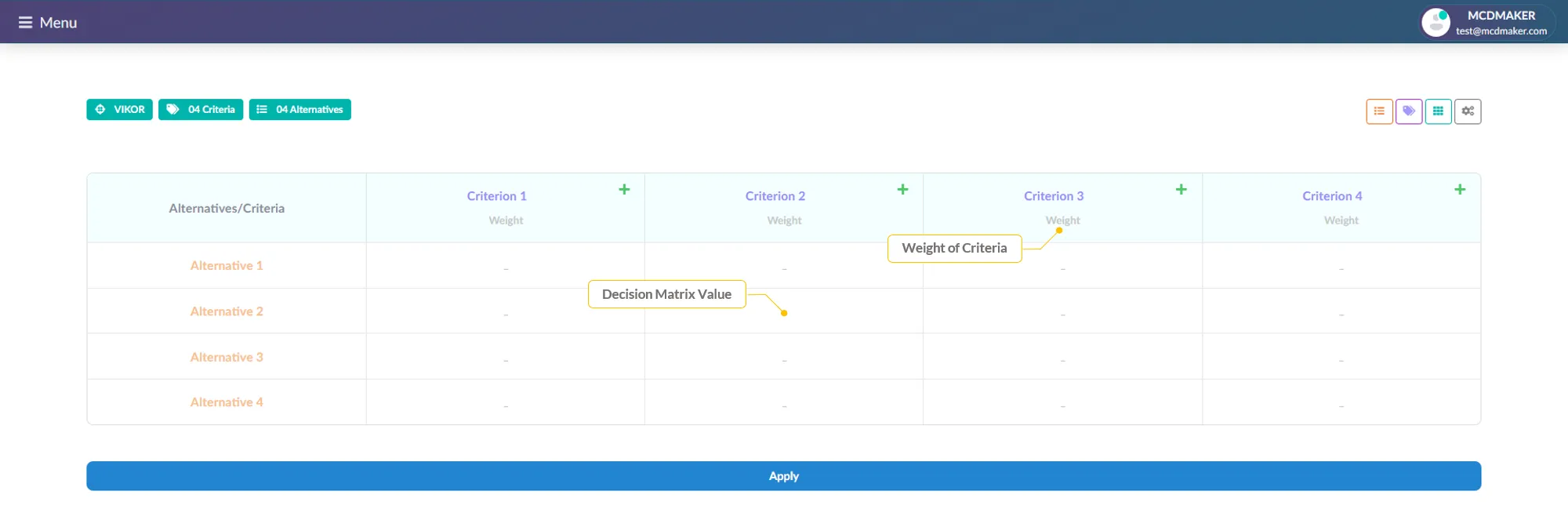
Enter values manually or by paste
Click any cell in the decision matrix and type a value, or use the paste buttons to populate data from Excel or Google Sheets.
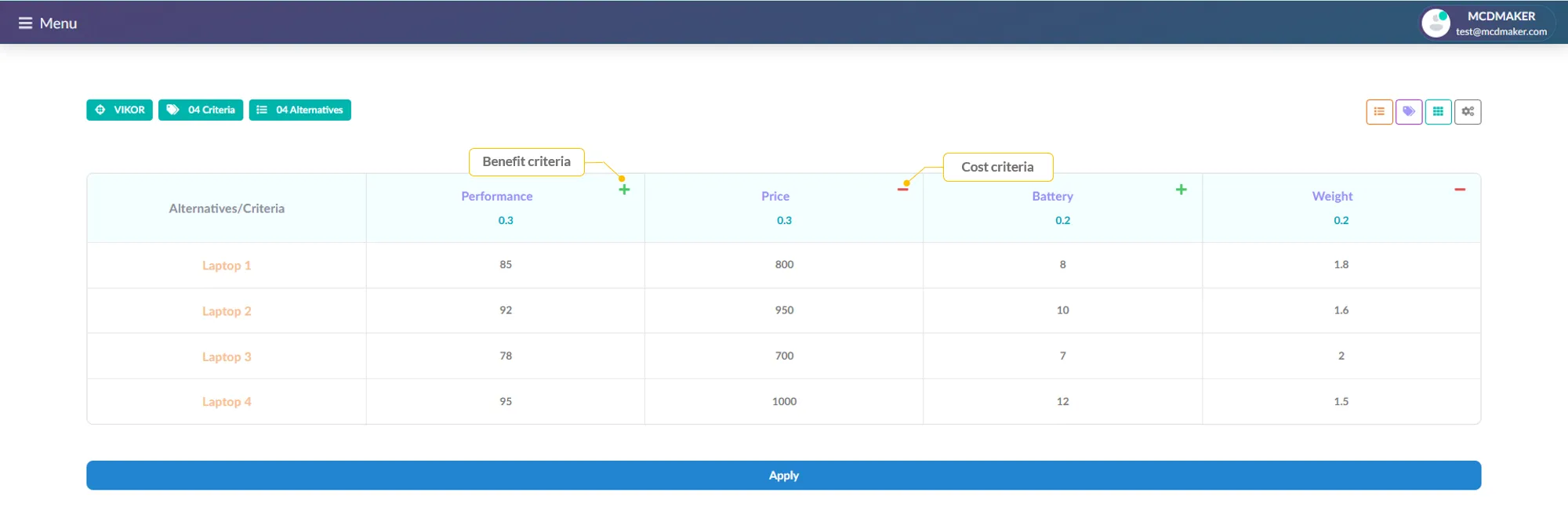
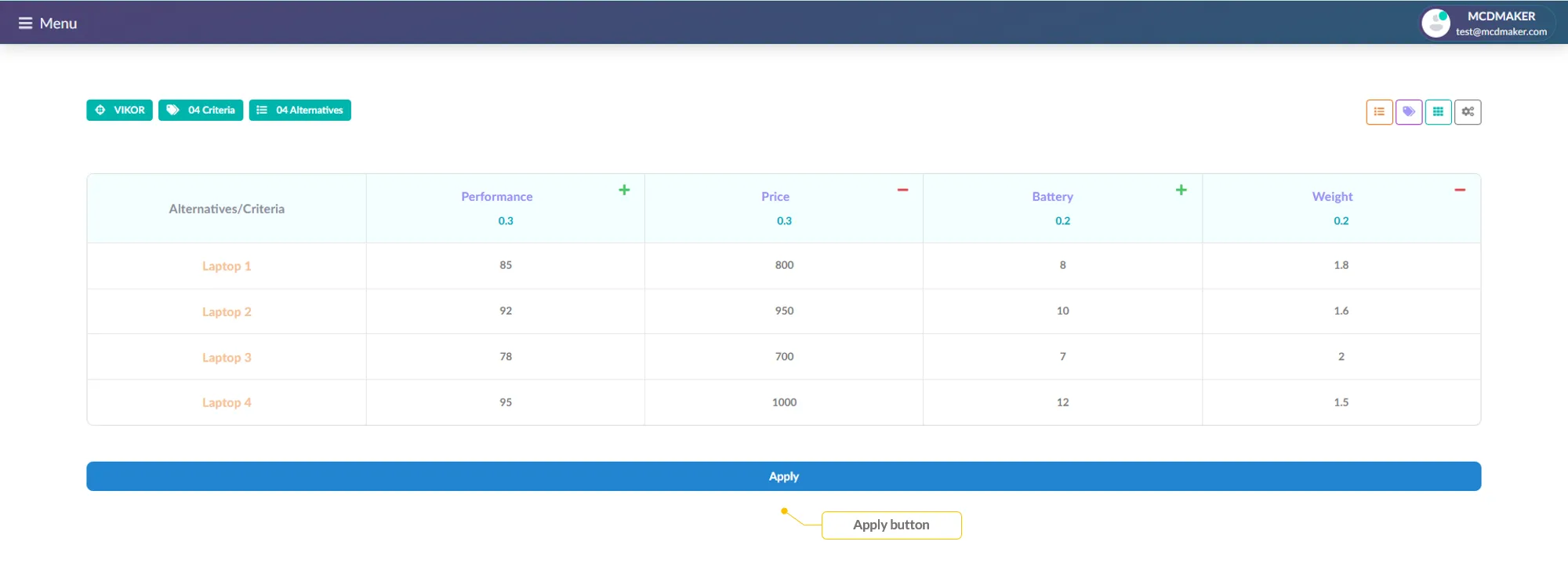
Set Benefit (+) or Cost (−)
For each criterion, click the +/− indicator in the column header to classify it:
Adjust Settings
In the right-side Settings panel, configure method-specific parameters:
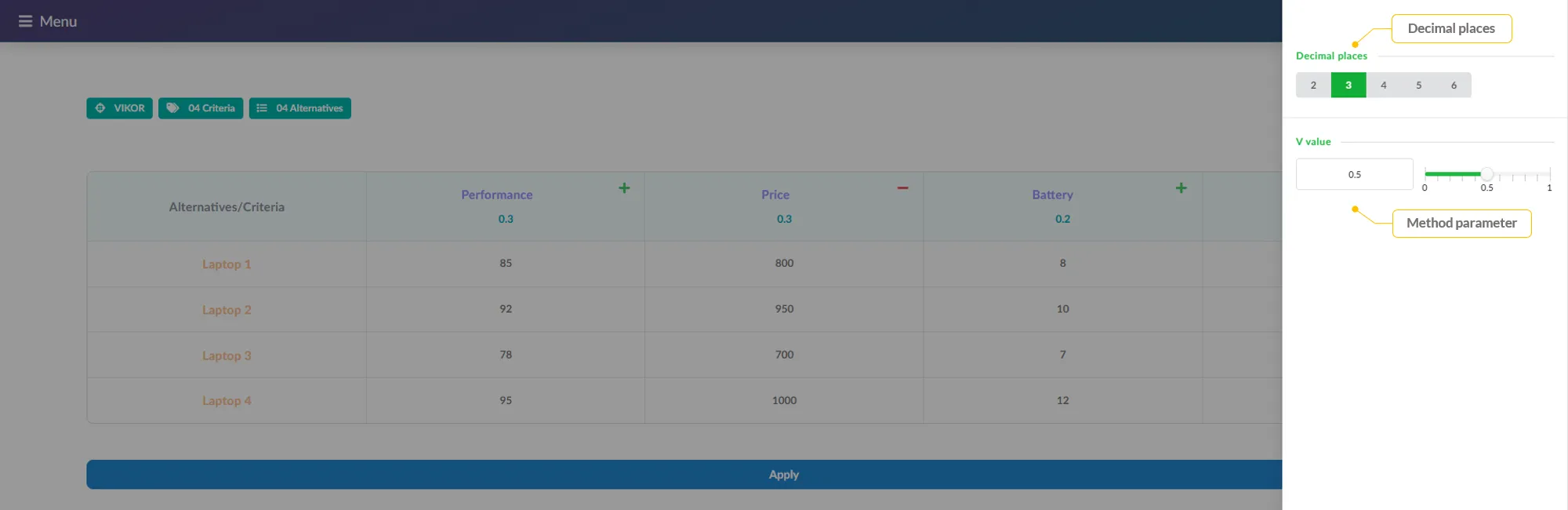
Click Apply
Once all data is entered and criteria are classified, click the blue Apply button to compute the results using the selected MCDM method.
View Results
Review Detailed Results
After clicking Apply, the results panel appears showing:
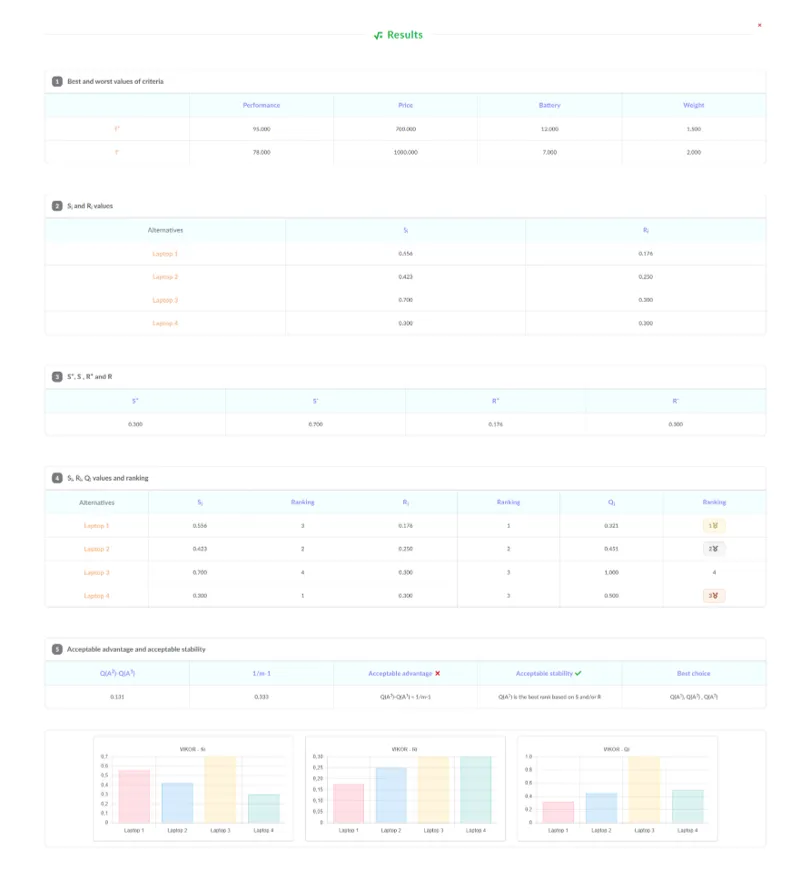
View Charts & Visualizations
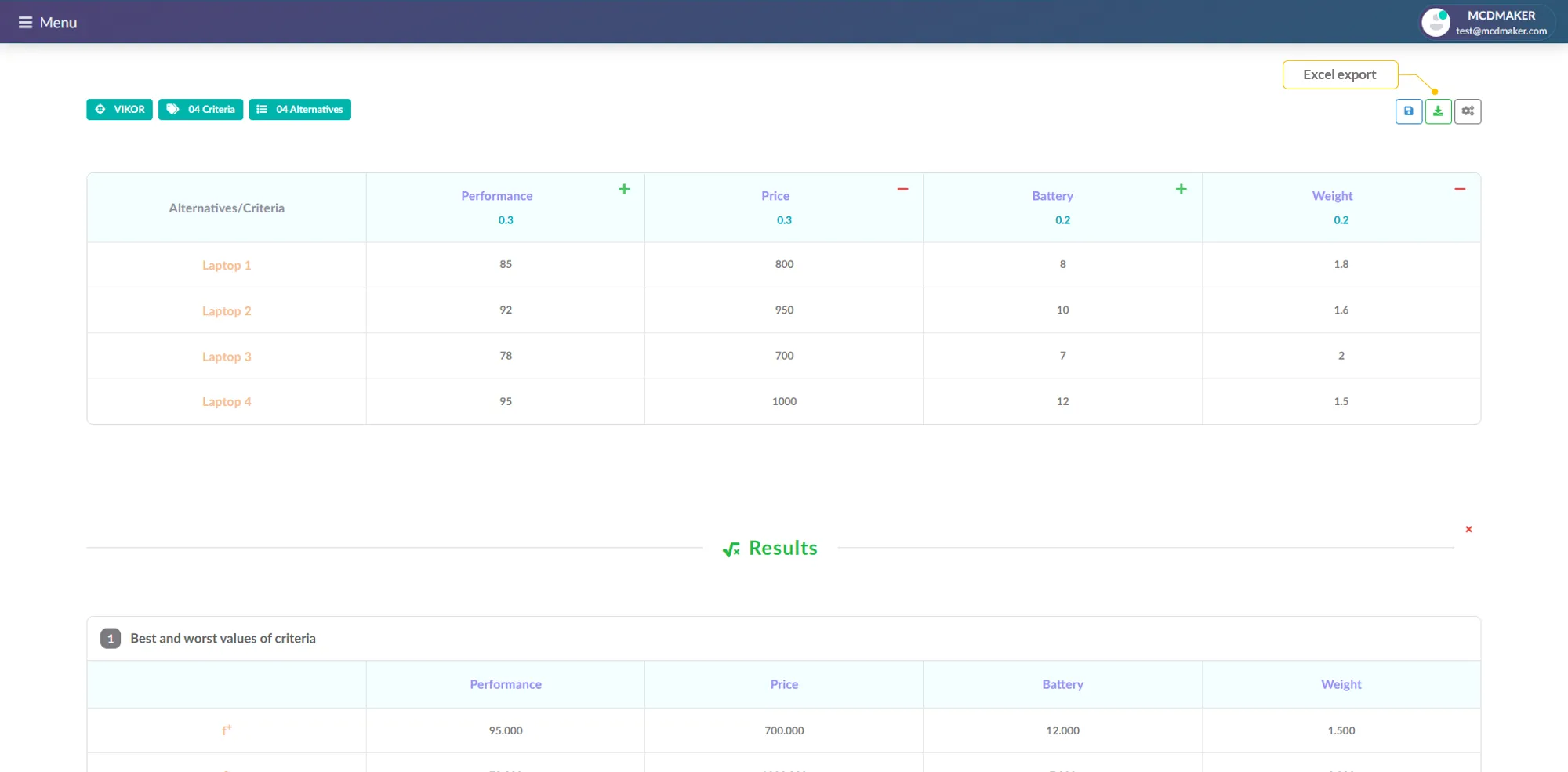
The results include bar charts, giving you an instant visual comparison of how alternatives perform across all metrics.

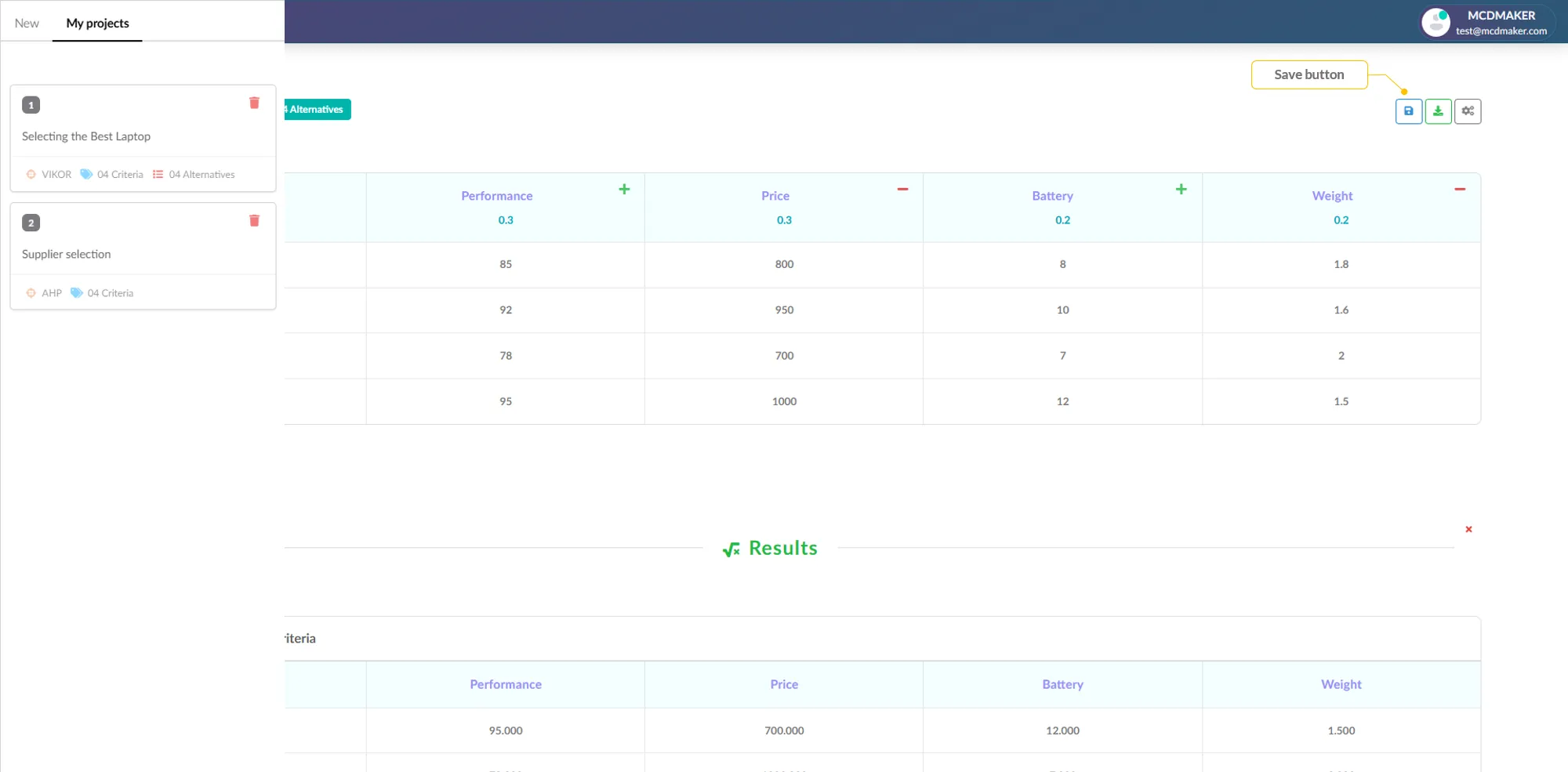
Click Save
Save the project and results to your account using the Save button in the results header. Access saved projects anytime from the Projects panel in the sidebar.
Click Export to Excel
Export the complete analysis to an .xlsx file using the Export to Excel button.
Fuzzy Scale Settings
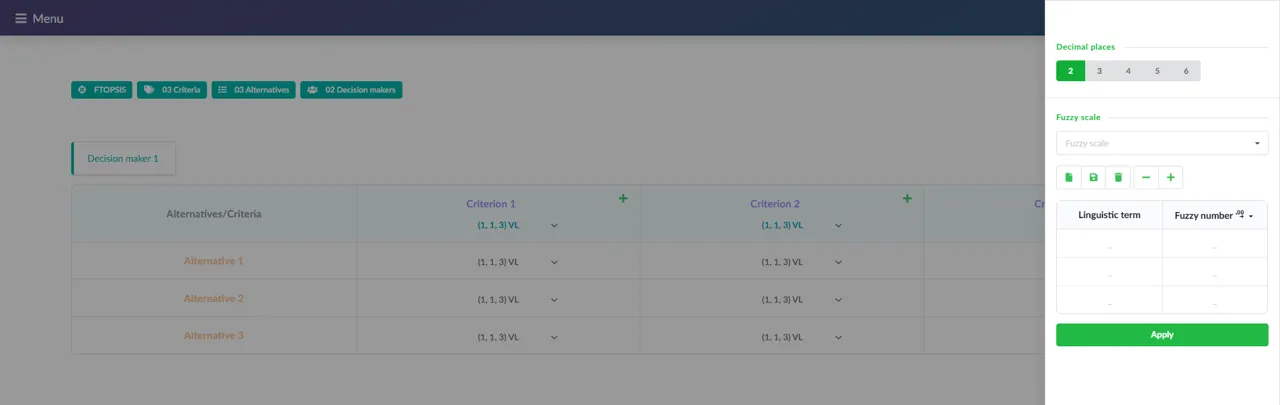
For fuzzy methods like FTOPSIS , you can add personalized fuzzy scales to define how linguistic terms (e.g. Very Low, Low, Medium, High, Very High) map to fuzzy numbers.
Open the Fuzzy Scale Editor
In the right-side Settings panel, locate the Fuzzy scale section. Click the Settings button (gear icon) next to the Fuzzy scale dropdown to open the fuzzy scale editor.
Create a New Fuzzy Scale
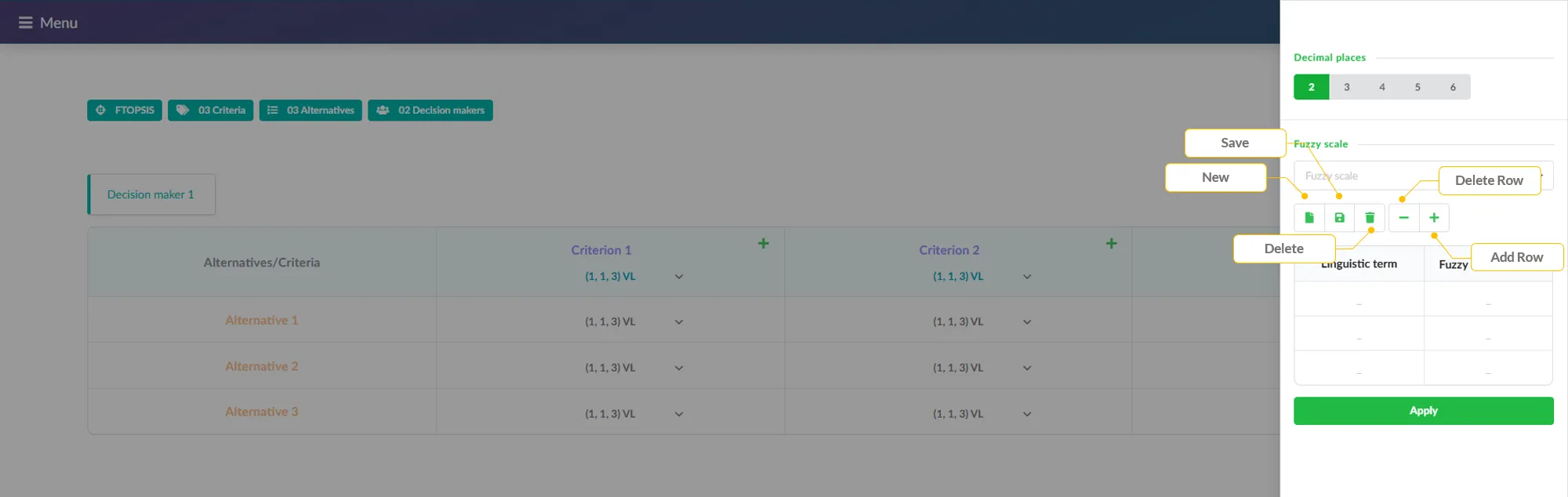
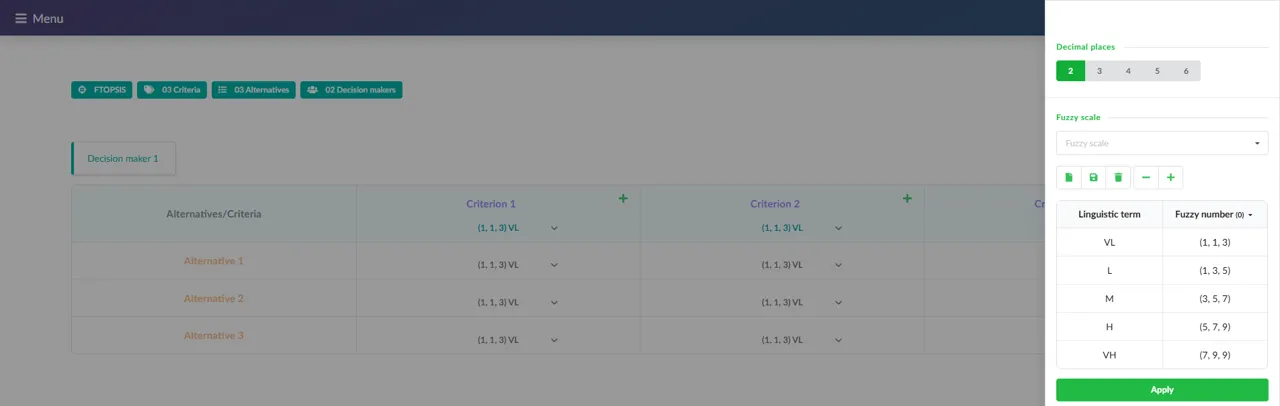
In the fuzzy scale editor, use the toolbar buttons to manage your scales:
Set Decimal Places for Fuzzy Numbers
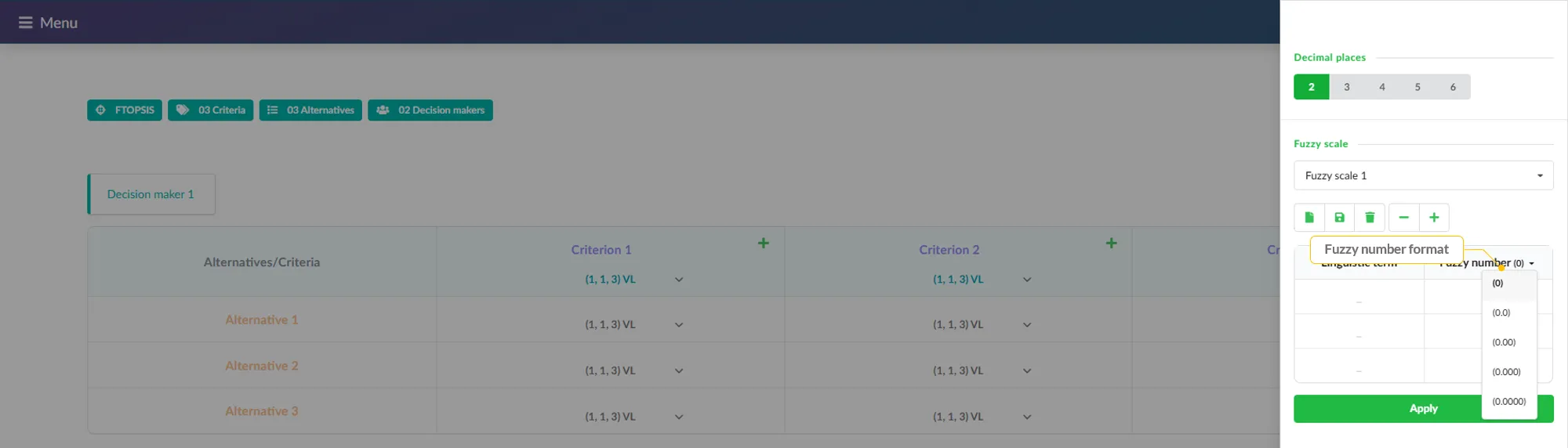
Click the control to the right of the Fuzzy number table header to select the number of decimal places for your fuzzy number values (e.g. (0) ), this controls the precision of the fuzzy triplets like (1, 1, 3), or (0.0) for fuzzy number like (0.1, 0.2, 0.3)
Fill in the Fuzzy Number Table
The table maps each Linguistic term (e.g. VL, L, M, H, VH) to a Fuzzy number triplet (l, m, u). Fill in each row:
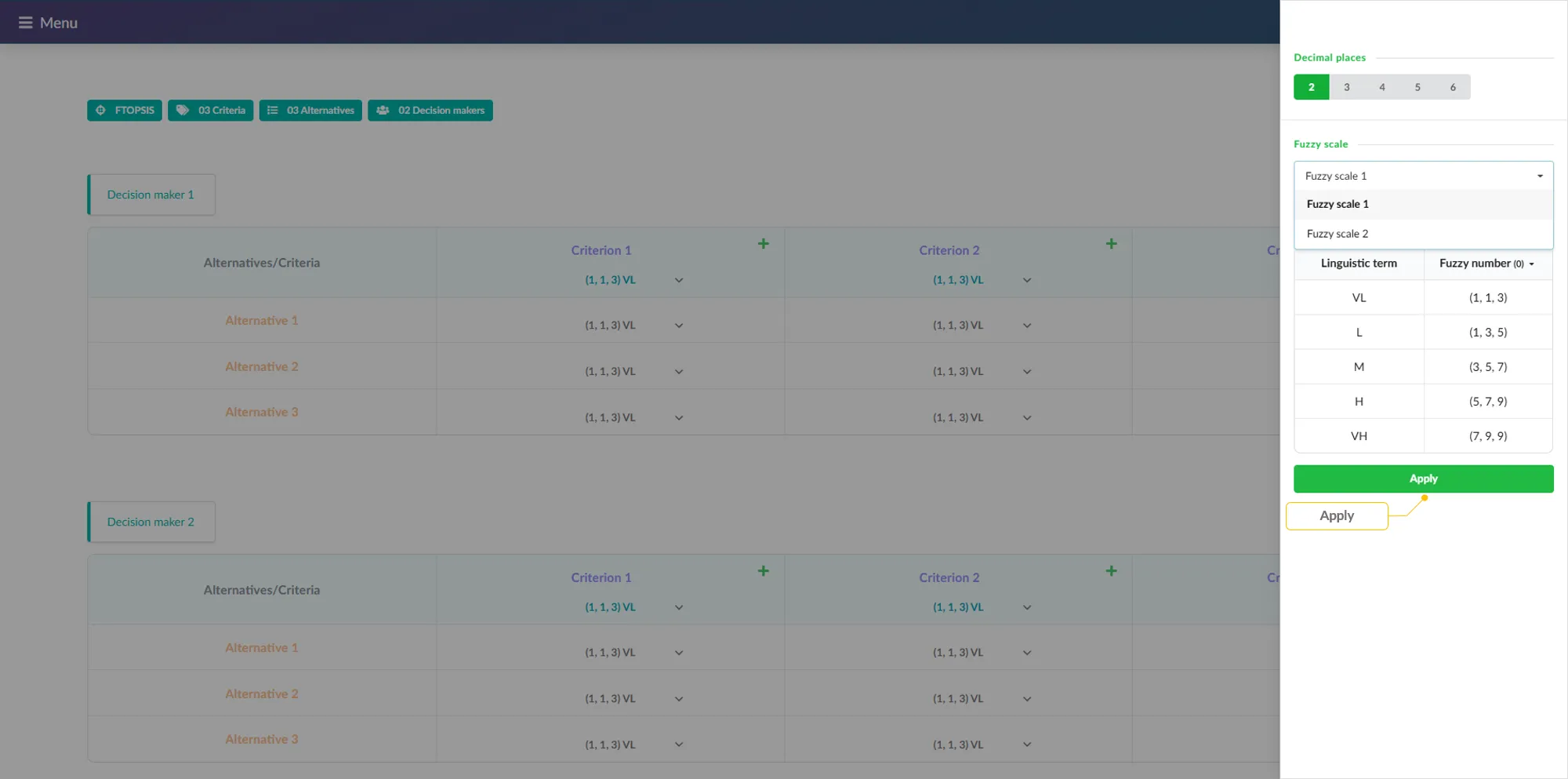
Click Apply
Click the Apply button to apply the fuzzy scale to your decision matrix. The linguistic terms in the data cells will be resolved using the fuzzy number mappings you defined, and the computation will proceed.
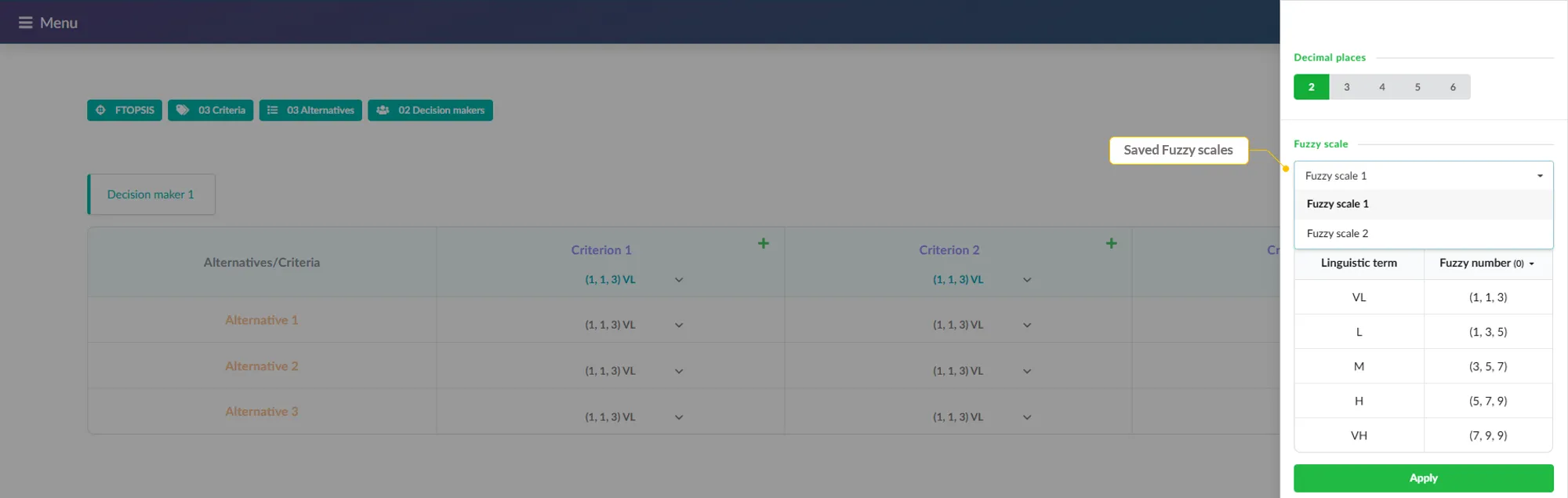
Save & Reuse Fuzzy Scale
Click the Save button in the fuzzy scale editor to save your personalized scale. Saved scales will appear in the Fuzzy scale dropdown, allowing you to quickly select and reuse them in future projects.
Methods Algorithms
Explore the mathematical foundation of each MCDM method. View step-by-step algorithms, toggle interactive examples, and click on any cell to see exactly how each value was calculated.
Browse the MCDM Methods List
Navigate to the MCDM Methods page. The left sidebar displays the complete list of available methods, including:
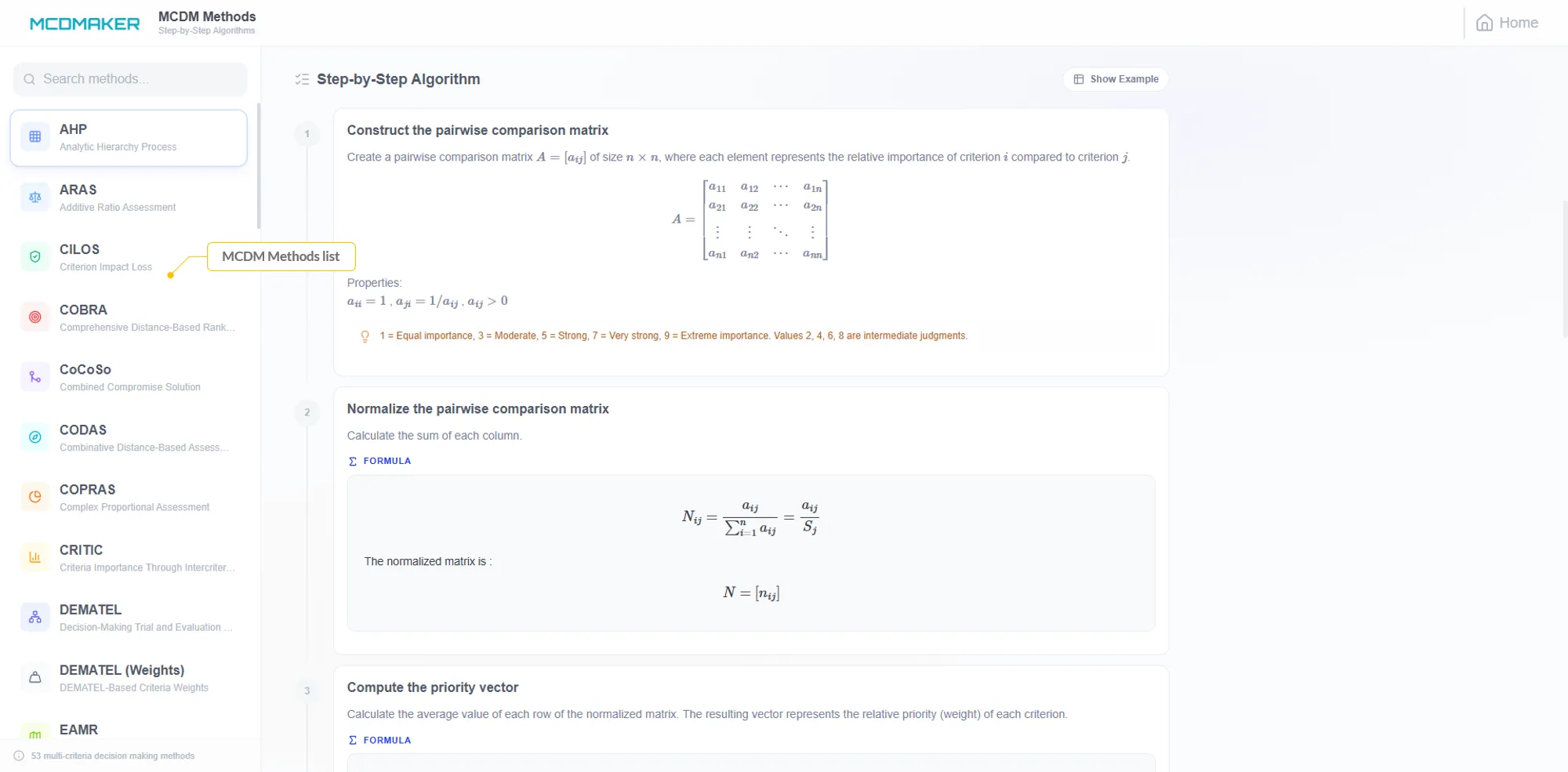
Click on a Method
Click any method name in the sidebar (e.g. AHP ) to load its algorithm page. The right panel will display the full step-by-step algorithm for that method.
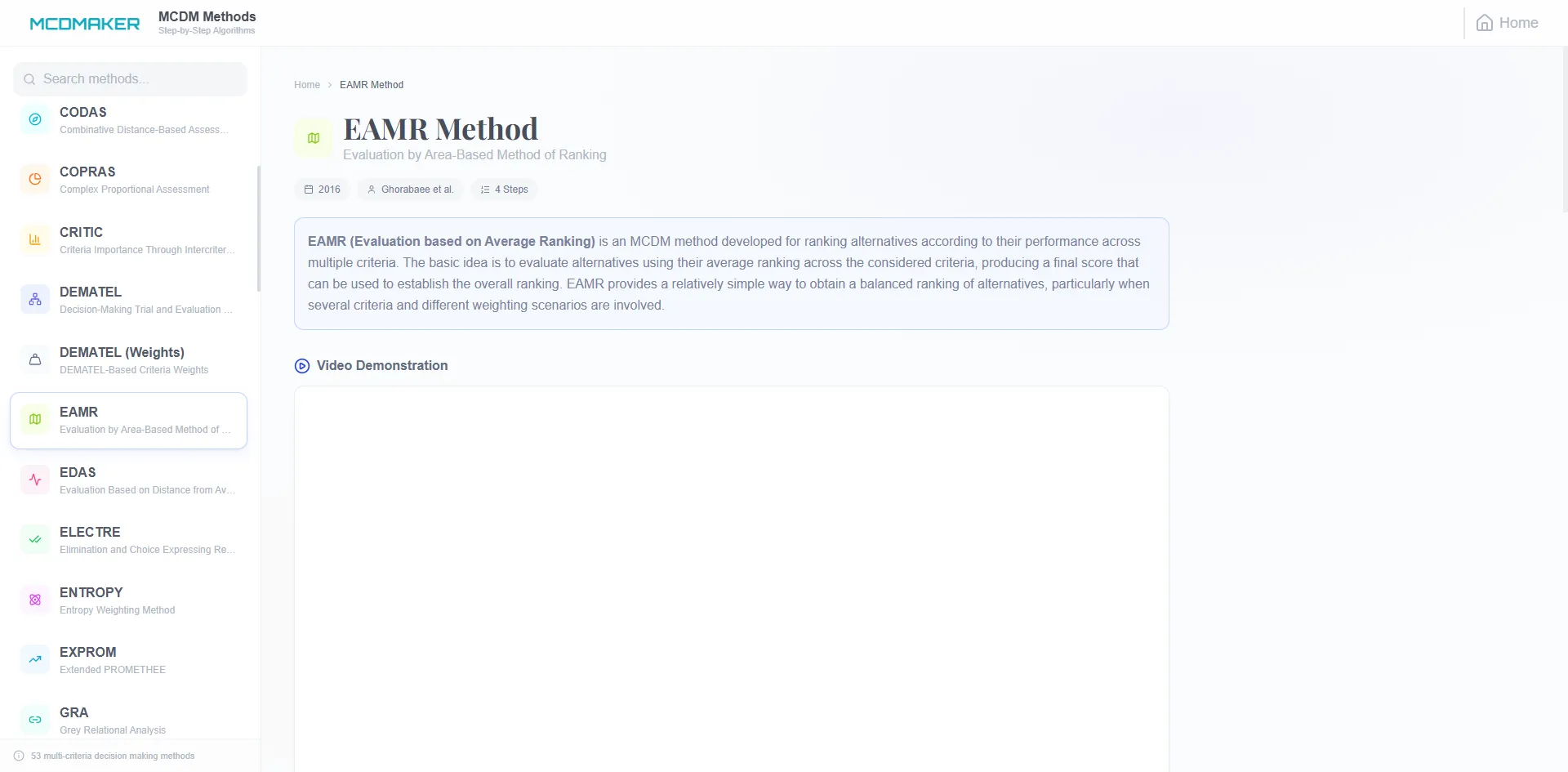
View the Step-by-Step Algorithm
The algorithm page displays each step of the method with:
Click Show Example to Toggle
Click the Show Example button to toggle the worked example on or off. When shown, example tables with sample data appear alongside each algorithm step, demonstrating how the formulas are applied to real values.
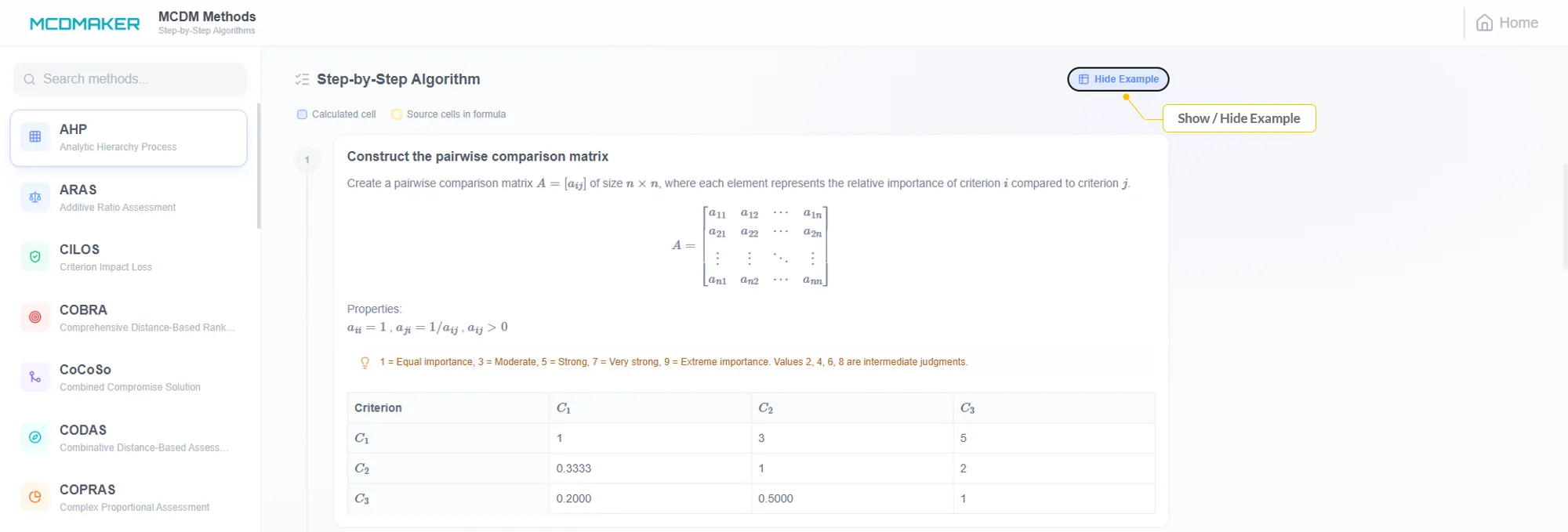
Click on Cells in the Example Table
When the example is visible, each cell in the example tables is interactive. Click any cell to see a detailed breakdown of how that specific value was calculated, including:
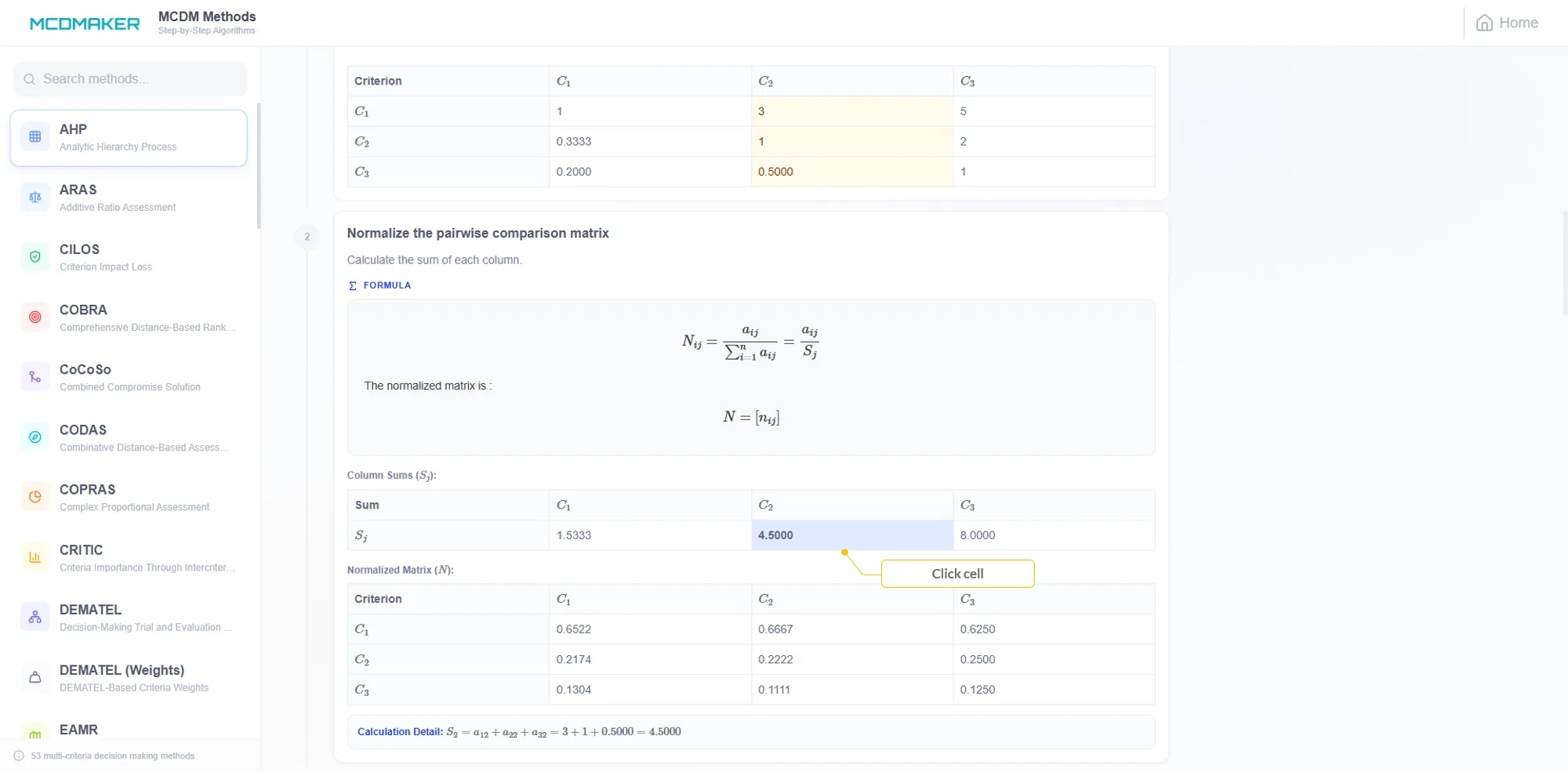
Get Interactive Calculation Results
After clicking a cell, a detailed calculation panel appears showing the full computation.
Interface Reference
Project Creation Panel
| Project Name | Name your decision problem |
| Method | Select MCDM method (VIKOR, FTOPSIS, etc.) |
| Criteria | Number of evaluation dimensions |
| Alternatives | Number of options to compare |
| Create | Green button — initializes matrix |
Data Input Toolbar
| Paste Alternatives | Paste alternative names |
| Paste Criteria | Paste criteria names |
| Paste Data Values | Paste entire matrix at once |
| Settings | Decimal places, method params, Fuzzy scale |
| Apply | Blue button — runs computation |
Results Toolbar
| Save | Save project & results to account |
| Export to Excel | Download full analysis as .xlsx |
Fuzzy Scale Editor
| New | Create a new blank fuzzy scale |
| Save | Save scale for reuse |
| Delete | Delete a saved scale |
| Add / Delete Row | Add or remove linguistic terms |
| Decimal Places | Precision of fuzzy number values |
| Fuzzy scale dropdown | Select saved or default scales |
Methods Algorithms Page
| Methods Sidebar | List of all MCDM methods (AHP, ARAS, VIKOR, etc.) |
| Algorithm Steps | Step-by-step formulas & explanations |
| Show Example | Toggle button — show/hide worked example |
| Example Tables | Interactive tables with sample data |
| Cell Click | Click any cell to see how the value was calculated |